How to Change Buttons on a Desk Phone or Hot Desk Profile
1. Open the device management area 0:20
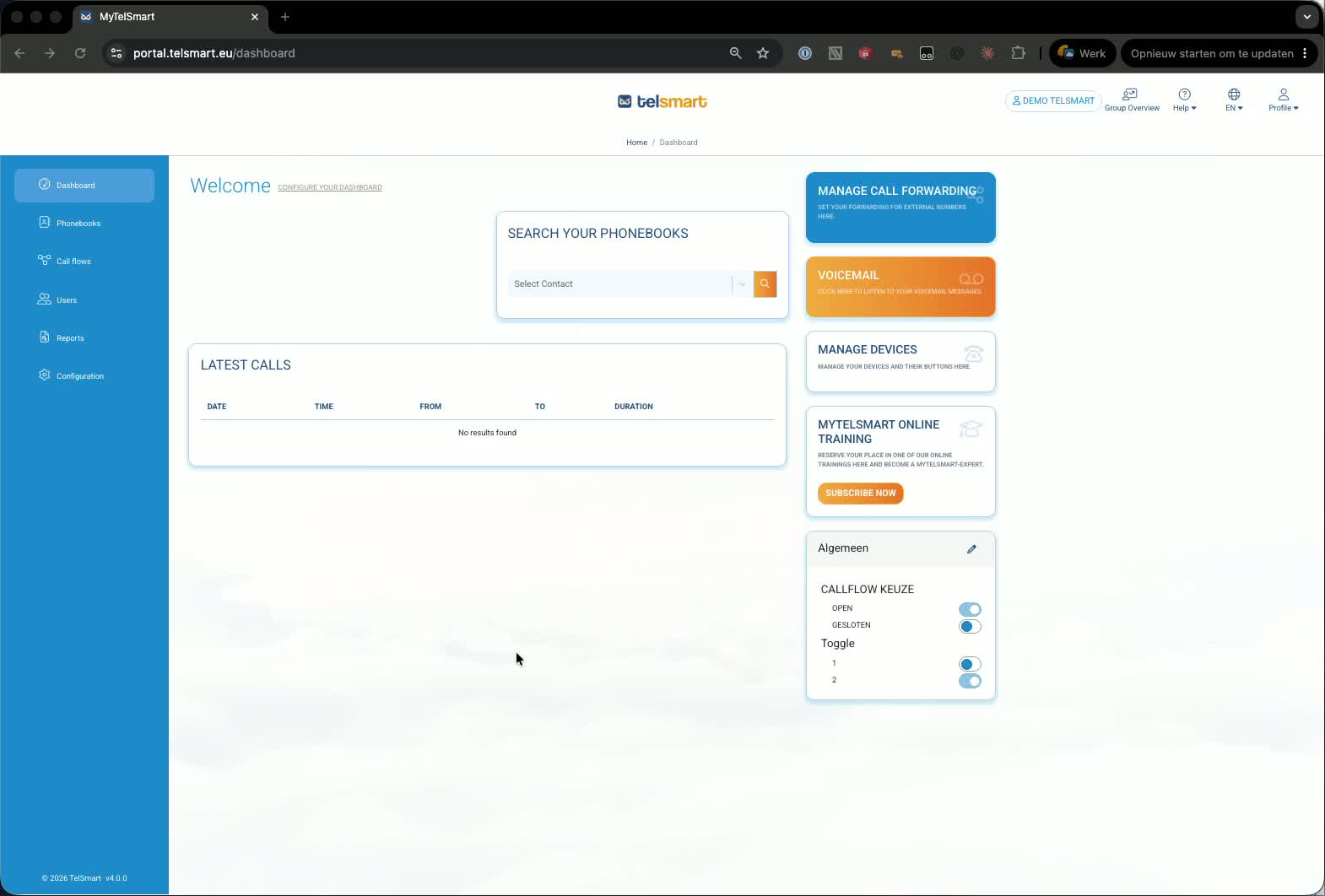
From the dashboard, go to Manage devices.
Open Manage Devices or Use Configuration Devices — both links lead to the same place.
This is where you can manage button layouts for fixed desk phones and hot desk profiles.
2. Select the fixed desk phone you want to edit 0:35
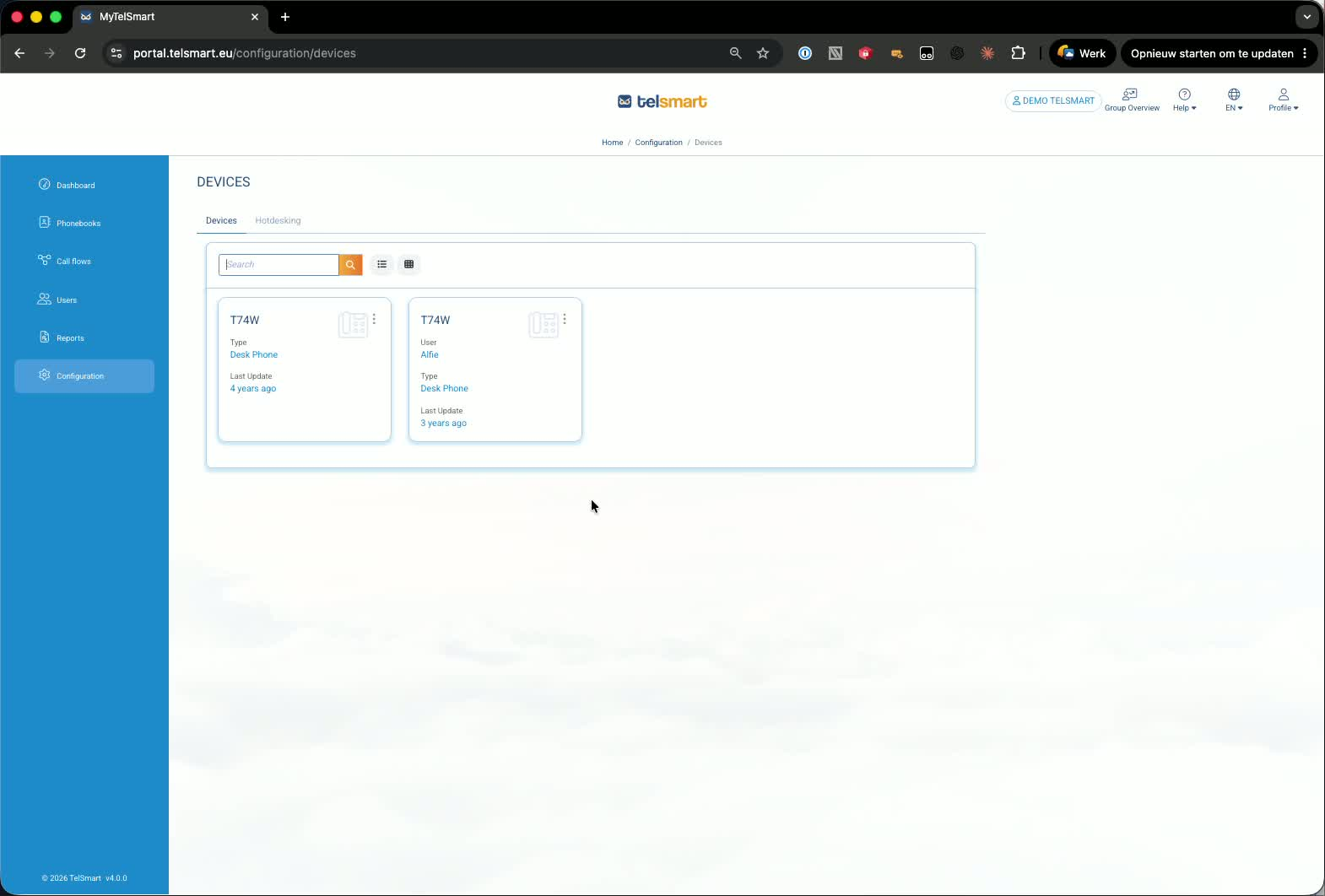
In the device list, find the phone assigned to the user.
In the demo, the fixed device belongs to Alfie.
This process applies to a fixed phone for a user or a fixed phone tied to a hot desk profile.
3. Open the device button settings 0:48
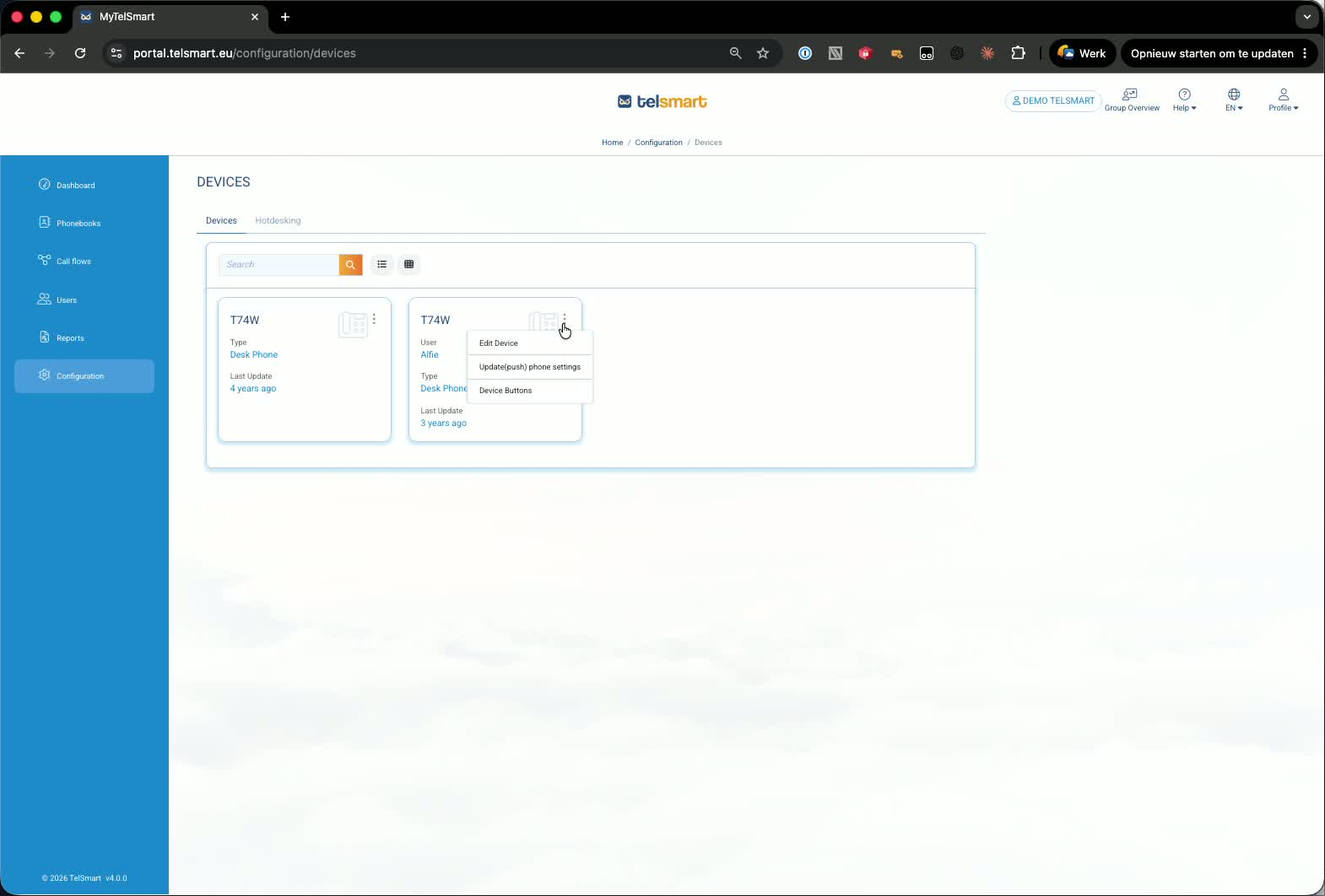
Click the three dots next to the phone icon.
Choose Device buttons.
You’ll see the current button layout, including any existing colleague/user buttons.
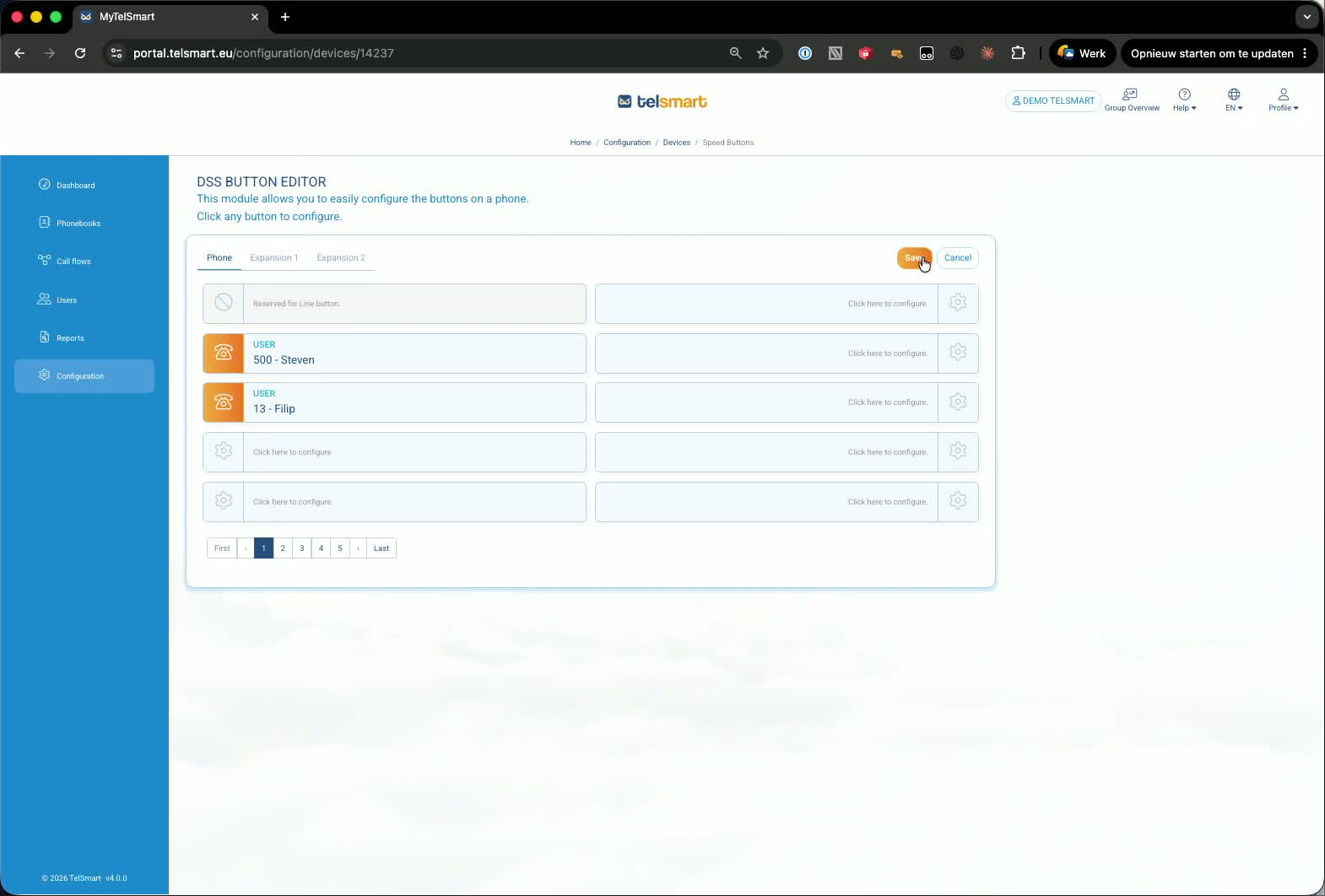
4. Edit the button layout for the fixed device 0:59
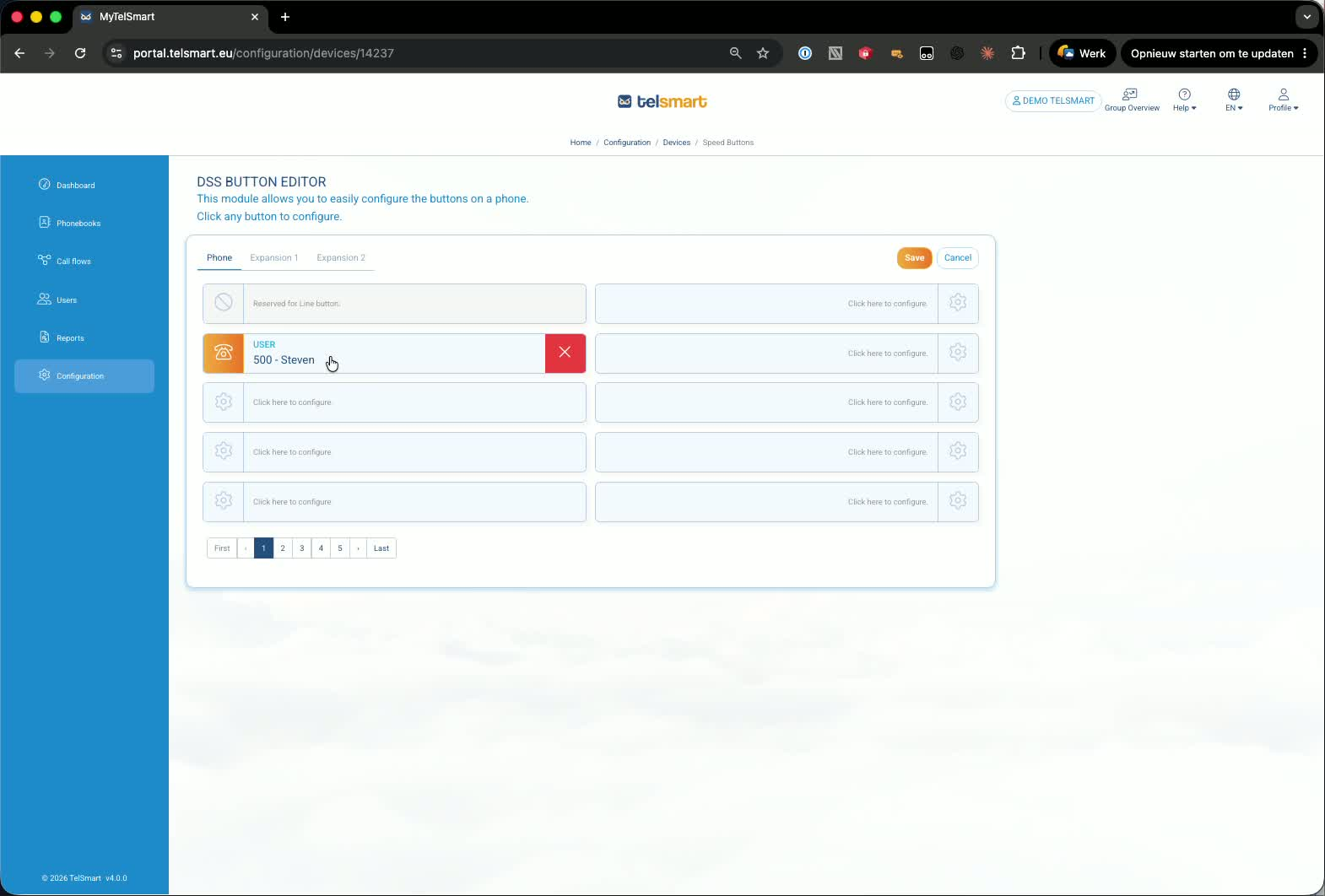
Move buttons to a different position if needed.
Add an extra button by selecting the desired colleague/user.
Click OK and then Save.
The updated layout should appear on the phone within a few seconds.
5. Switch to the hot desk profile 1:12
On the same page, open the Hot desk tab.
This shows the users who can log on or off on devices.
Hot desk profiles are managed in the same general area as fixed devices.
6. Edit the hot desk device buttons 1:31
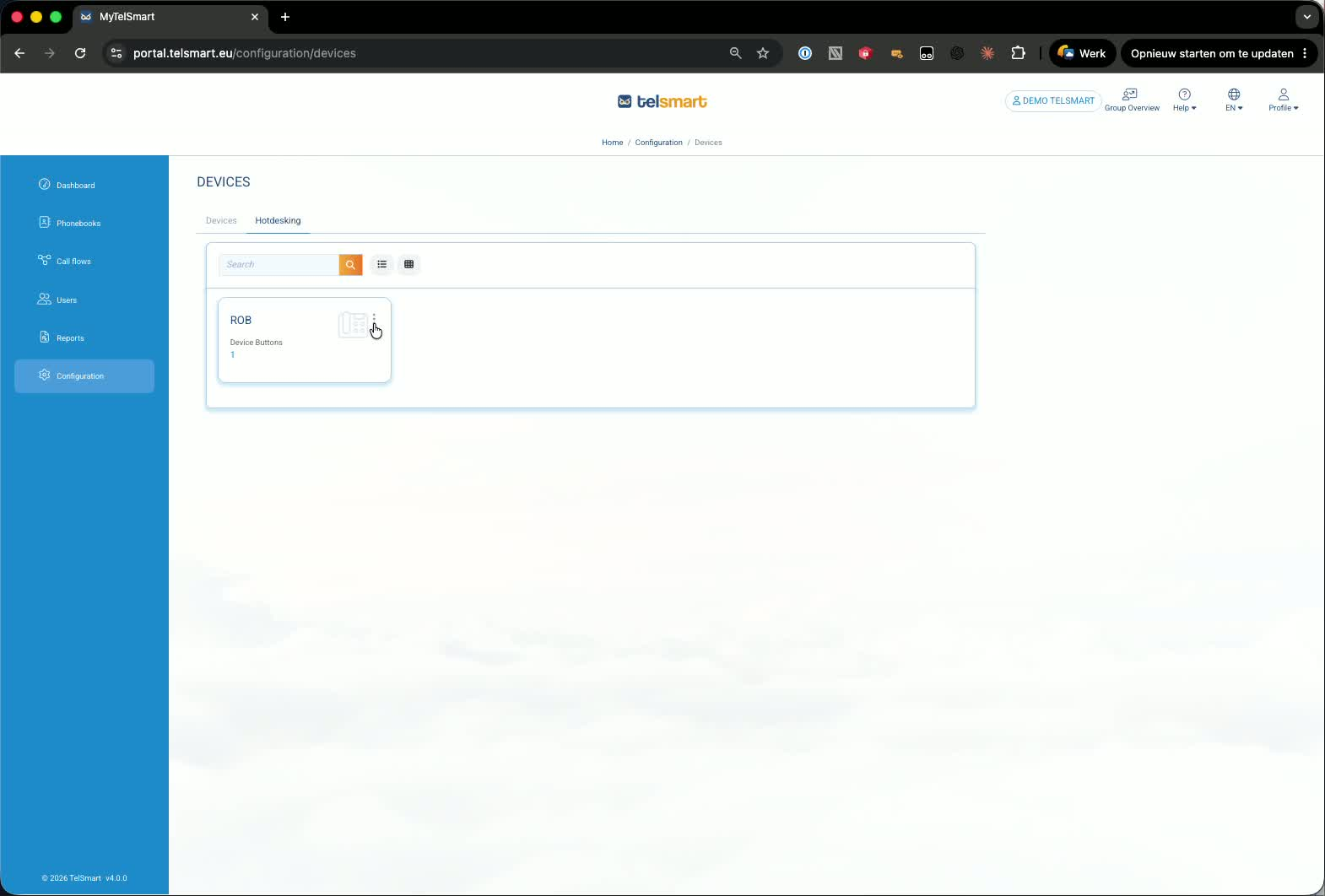
Click the three dots next to the hot desk device.
Select Device buttons.
Review the current phone layout for that hot desk profile.
Add another button if needed, then click OK and Save.
7. Refresh the hot desk phone to see the changes 1:49
The changes are saved to the hot desk profile.
To make the new buttons appear on the hot desk phone, log off and log back on.
After re-login, the updated button layout will be visible.
Link to Loom
Was this article helpful?
That’s Great!
Thank you for your feedback
Sorry! We couldn't be helpful
Thank you for your feedback
Feedback sent
We appreciate your effort and will try to fix the article