How to Add a Person to a Call Flow
1. Open the Call Flows section from the dashboard 0:00
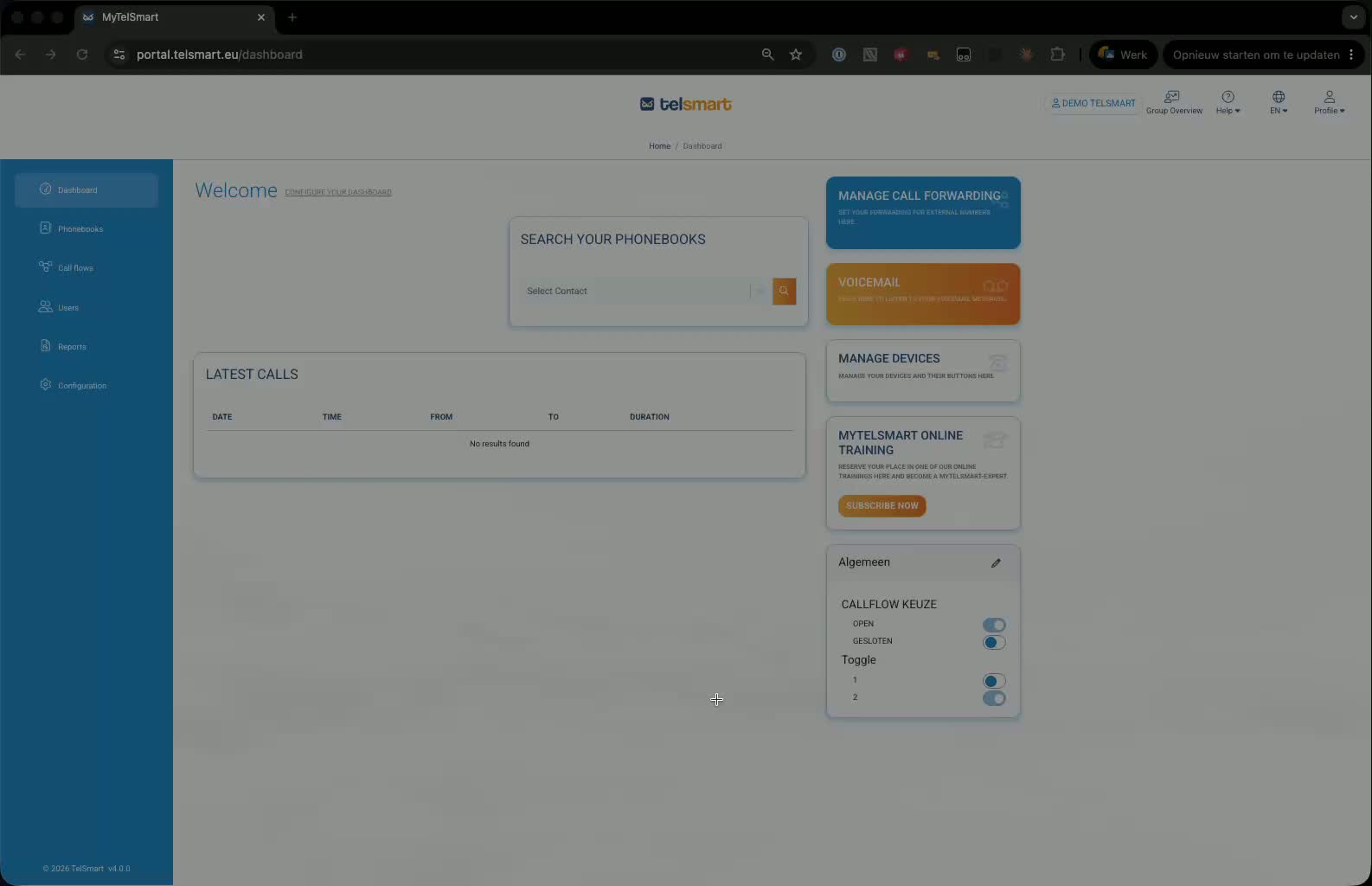
Start on the dashboard.
In the left-hand menu, click Call Flows.
Search for the call flow you want to edit .
Confirm it is connected to the correct phone number before editing.
2. Edit the call flow 0:12
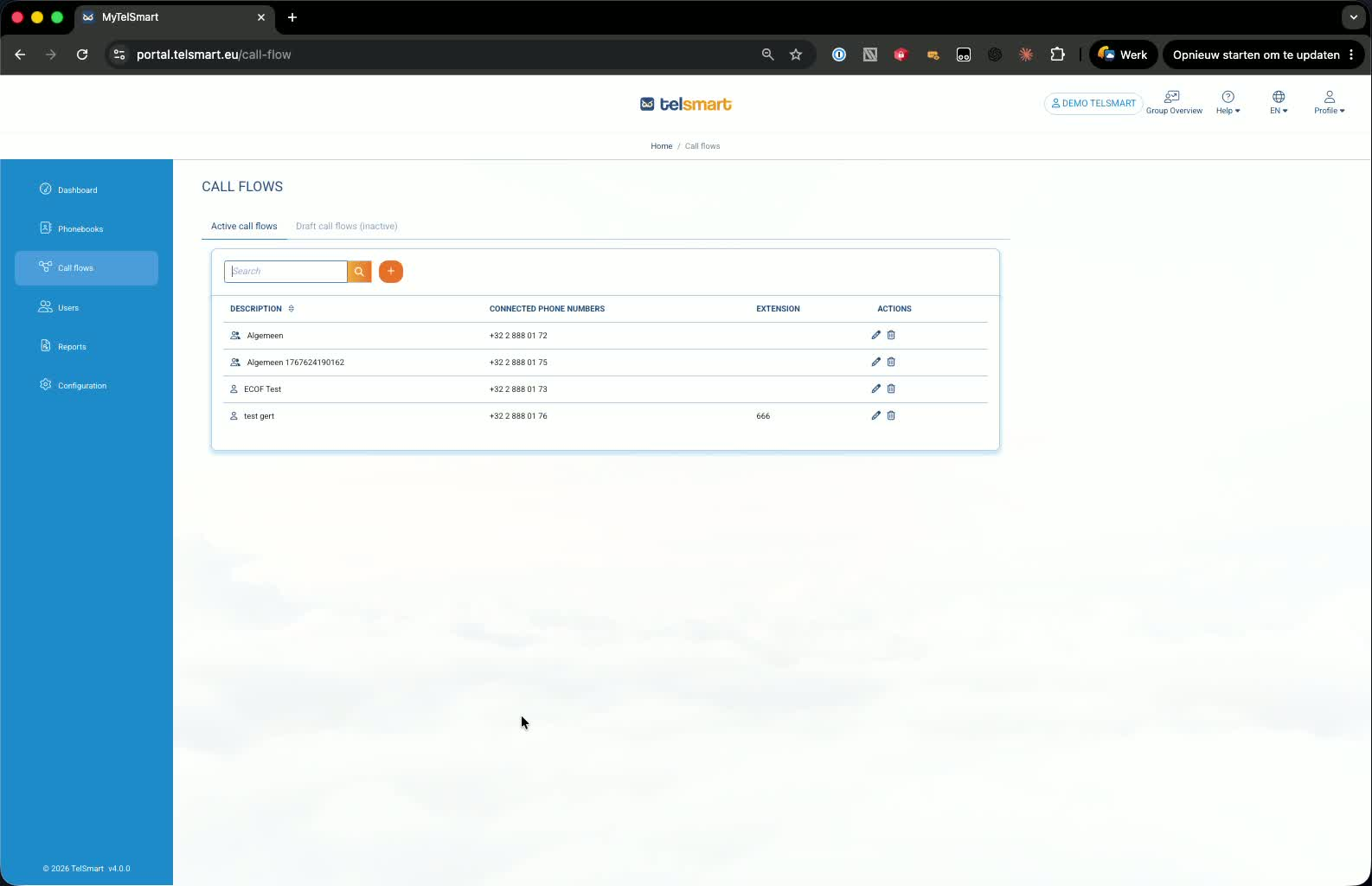
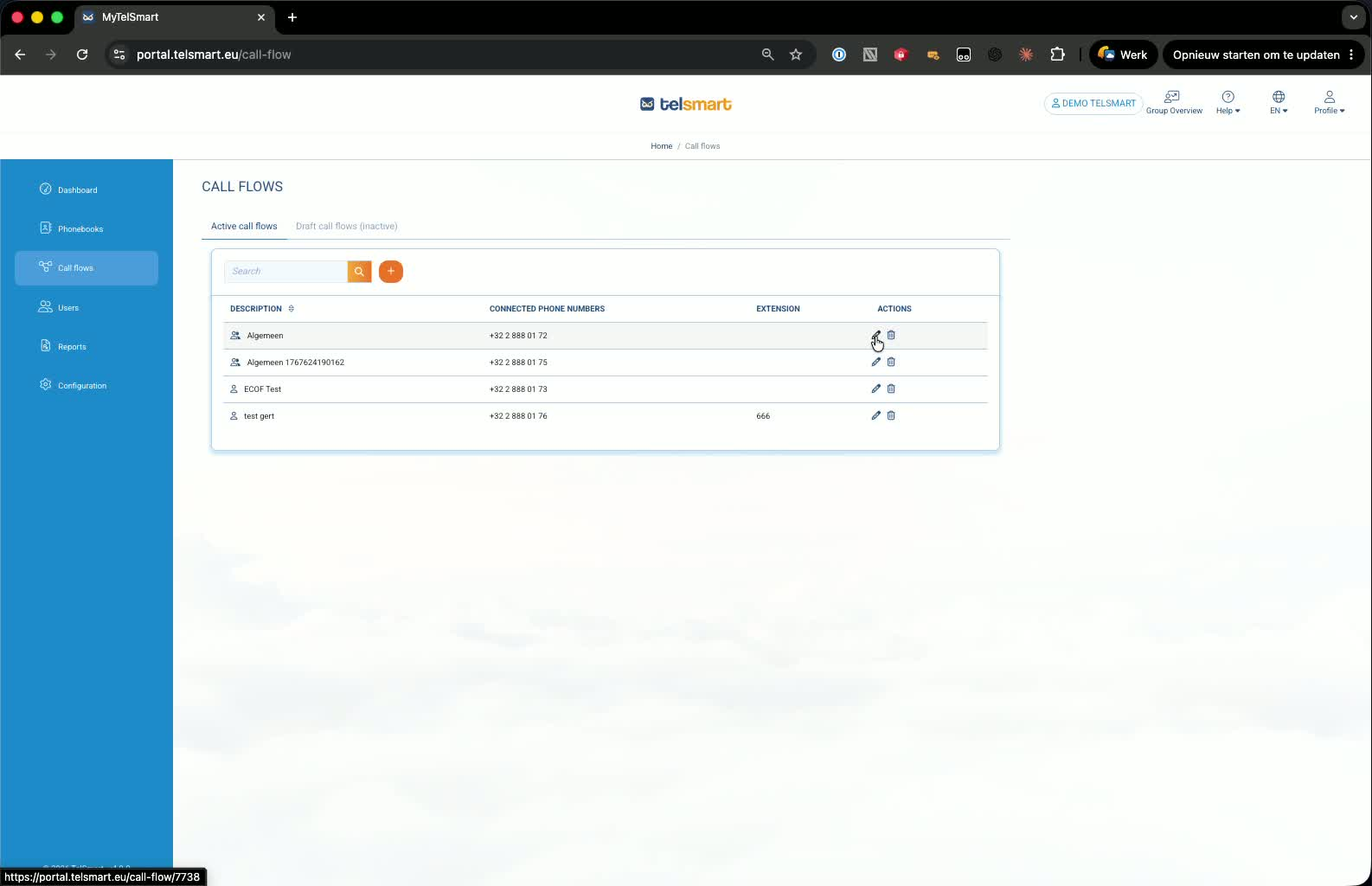
Click the pencil icon to open the call flow designer.
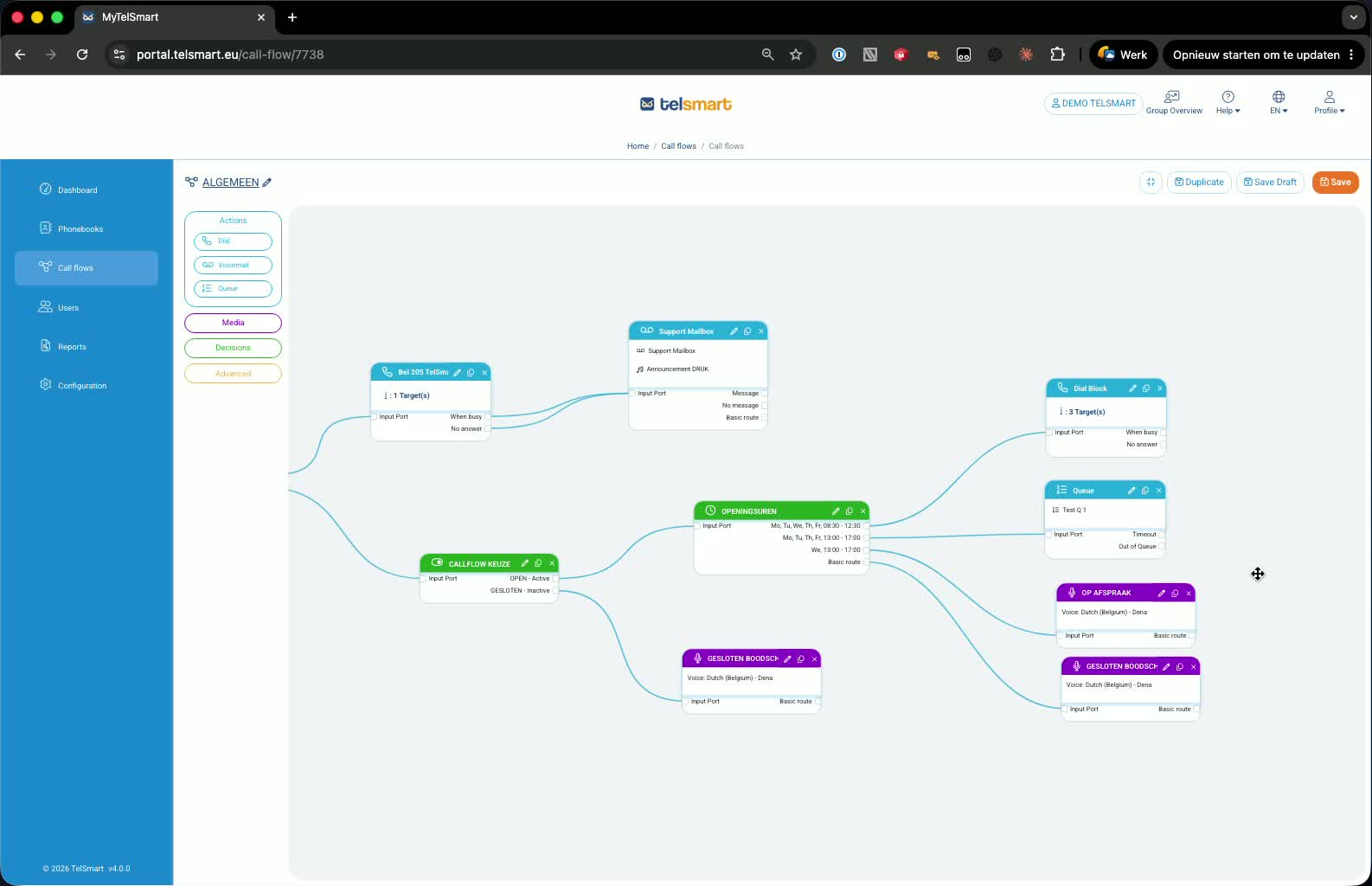
In the designer, you’ll see modules such as:
Opening hours
Dial block
Queue
These are the two main ways to make calls ring somewhere: via a dial block or a queue.
3. Add a person through the Dial block 0:24
In the Dial block, click the pencil icon to edit it.
Click the orange button to add a person to the call flow.
Select the person you want to add (for example, Philip).
Click OK.
Save the call flow, then save again to confirm.
The person is now added to the call flow.
4. Understand how the Queue option works 1:09
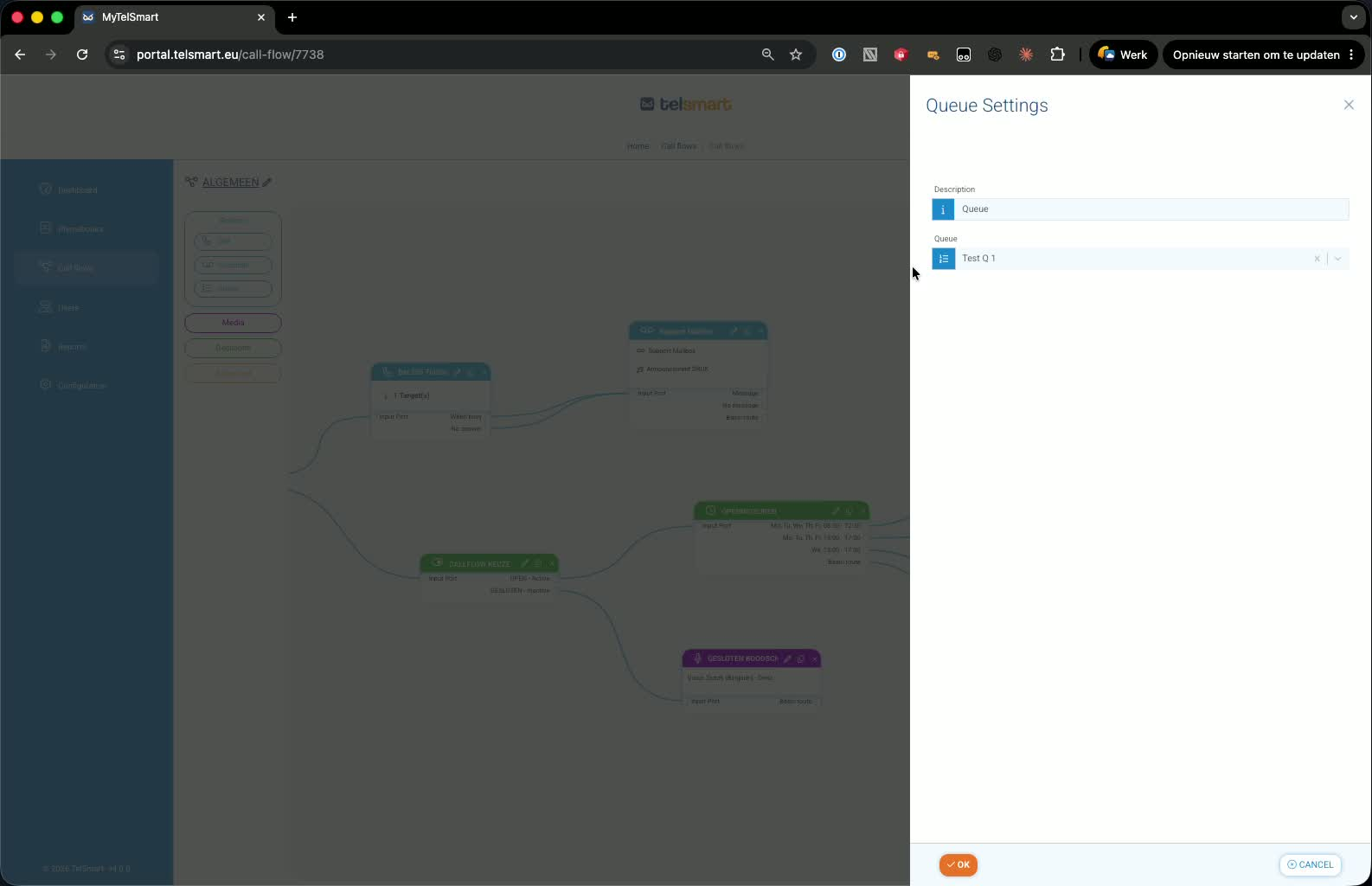
The Queue option also lets calls ring somewhere, with music playing while callers wait.
Unlike the Dial block, you do not add a person directly inside the call flow designer.
Instead, you define which queue the call flow should connect to.
5. Add a person to the Queue from Configurations 1:22
Go to Configurations.
Open the Queue section.
Find the queue you want to edit (for example, test Q number one).
Click the pencil icon to edit the queue.
In the queue settings, go to the relevant agent settings.
Click the orange button to add a person.
Select Philip and save.
The queue is now updated and connected to that person.
Link to Loom
Was this article helpful?
That’s Great!
Thank you for your feedback
Sorry! We couldn't be helpful
Thank you for your feedback
Feedback sent
We appreciate your effort and will try to fix the article