How to Add Holiday Dates or Office Hours to a Call Flow
1. Open the call flow you want to edit 0:11
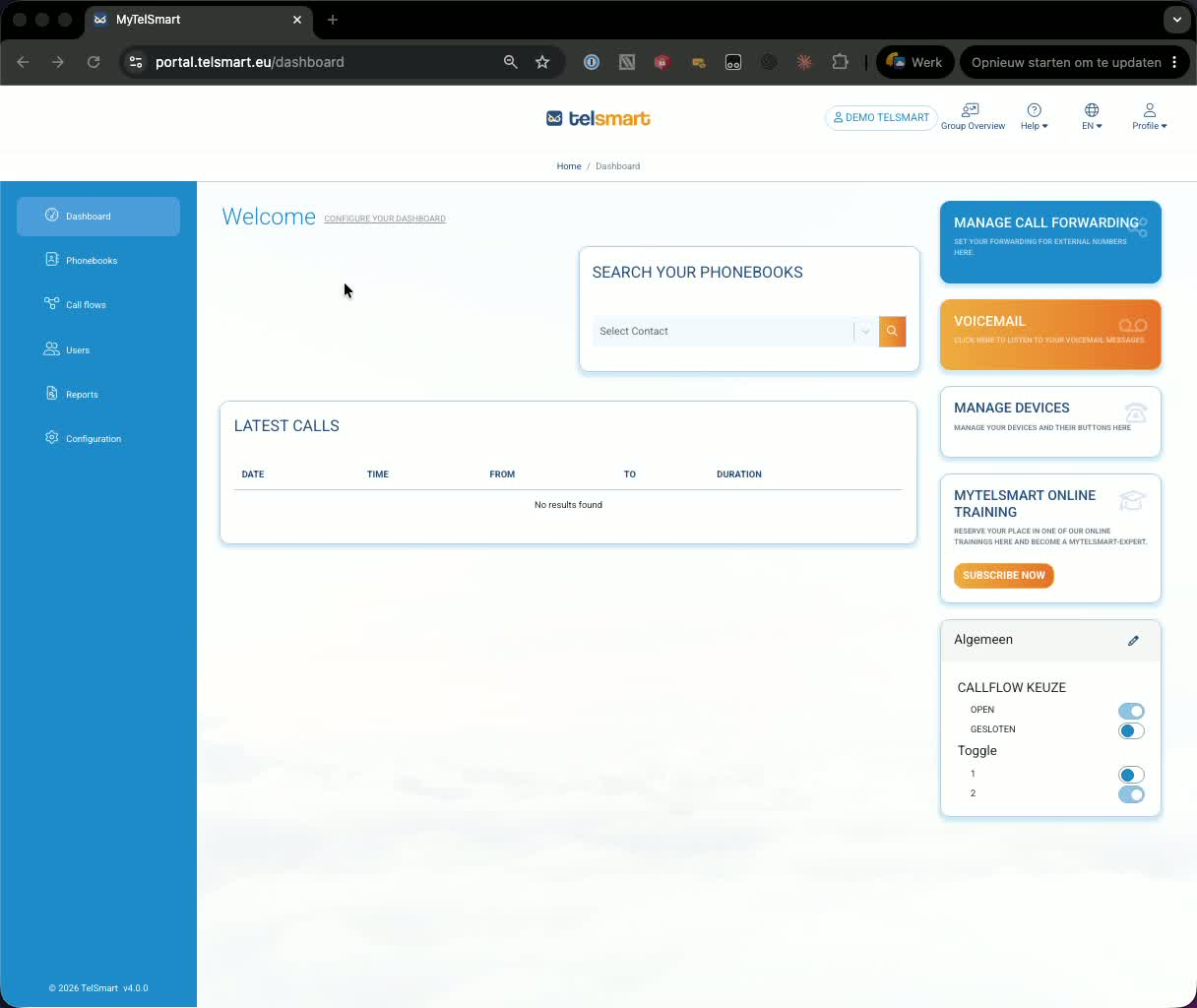
From the dashboard, go to Call Flows.
Select the call flow you want to update.
In the example, the flow currently routes an incoming call to an extension and then to voicemail after a delay.
2. Add a calendar or schedule decision block 0:45
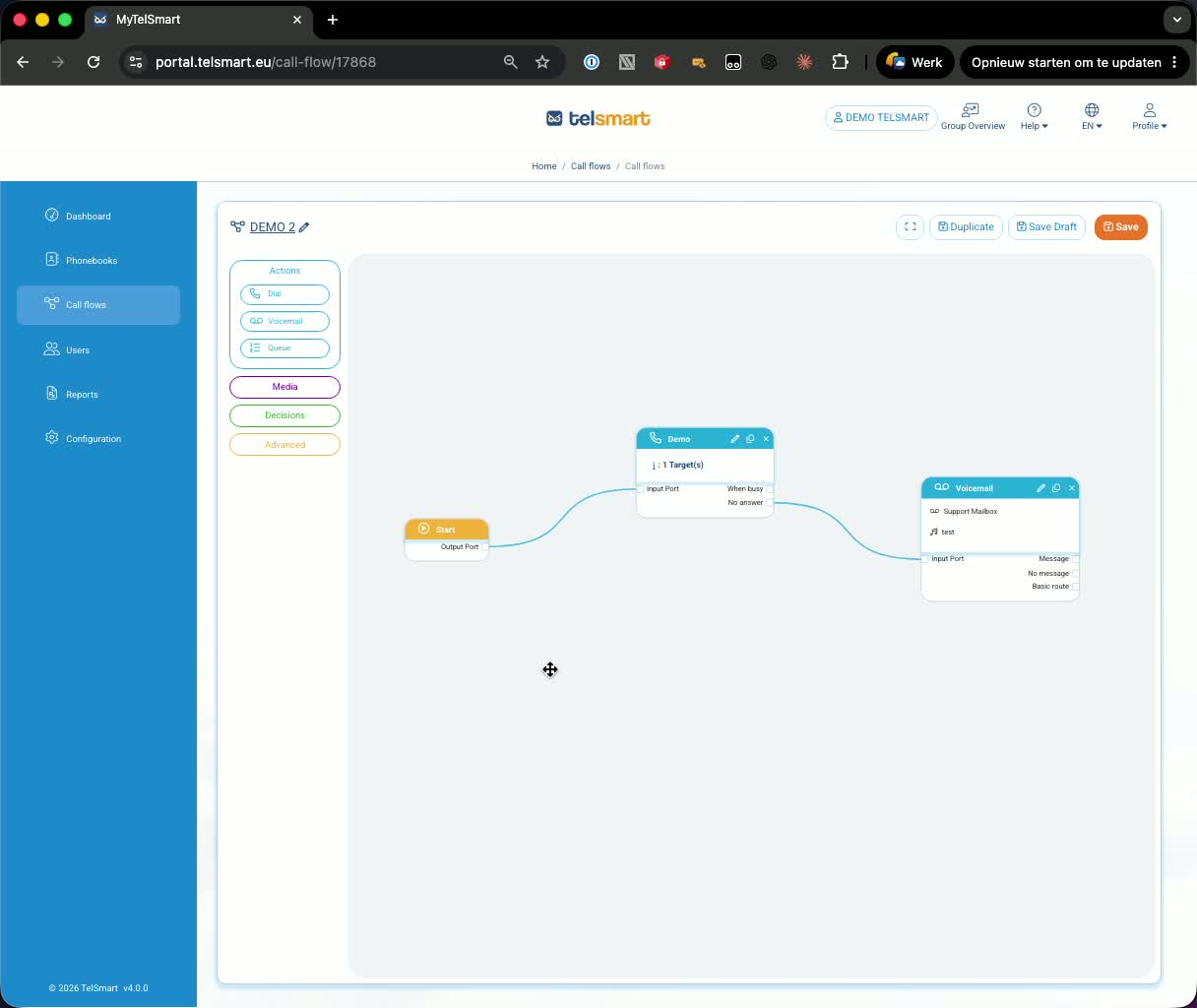
To route calls differently on specific dates or during office hours, add a Decision module.
Search for Calendar if you want a specific date-based rule, or use the Schedule module for recurring office hours.
Drag the calendar/schedule block into the call flow.
3. Configure a specific holiday date 1:03
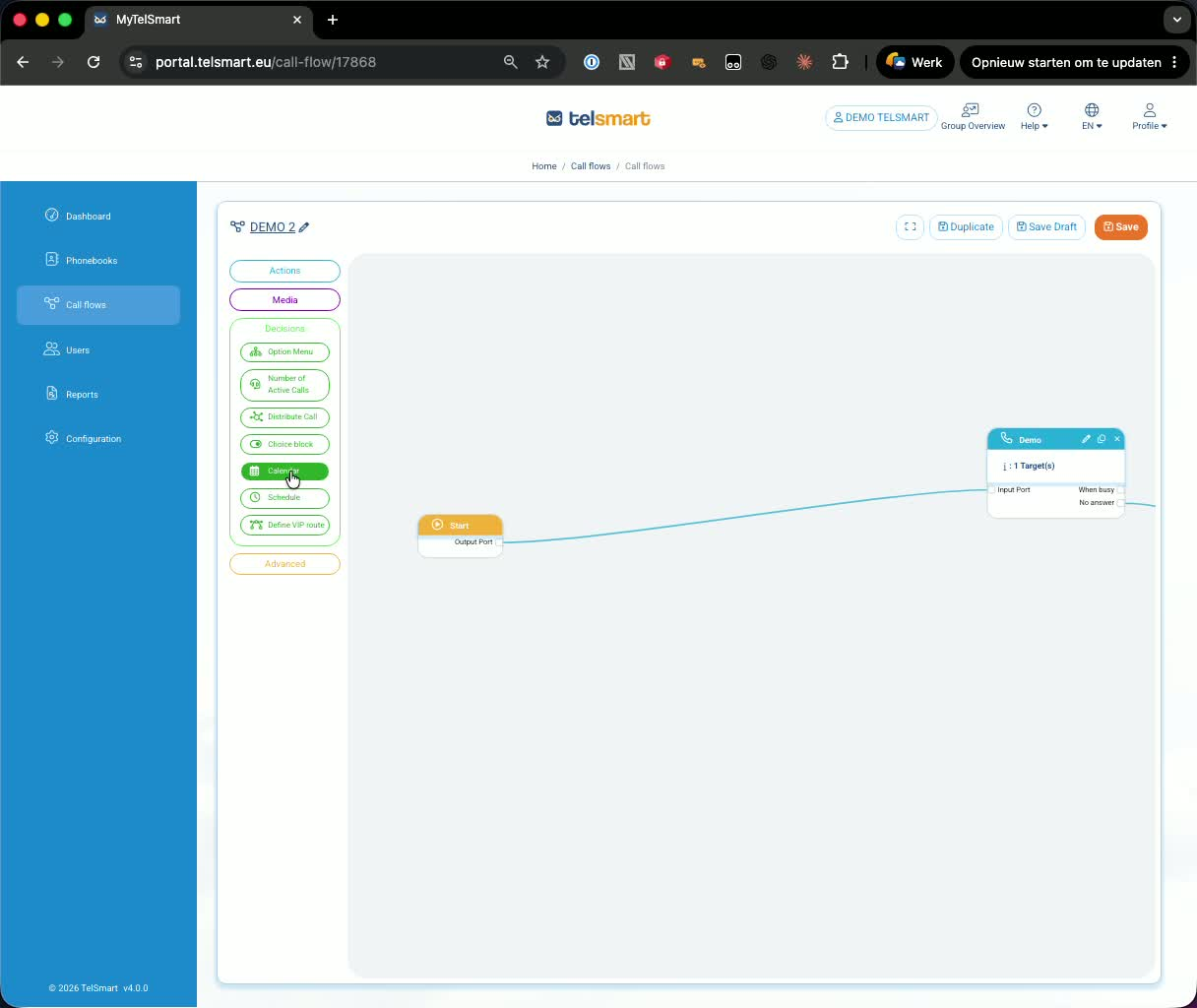
Select the calendar block and set the date you want to treat specially.
In the demo, the date is set to January 1st.
Define the time window for that date, such as 7:00 AM to 7:00 PM.
Confirm the settings to create the holiday rule.
4. Connect the holiday route to voicemail 1:49
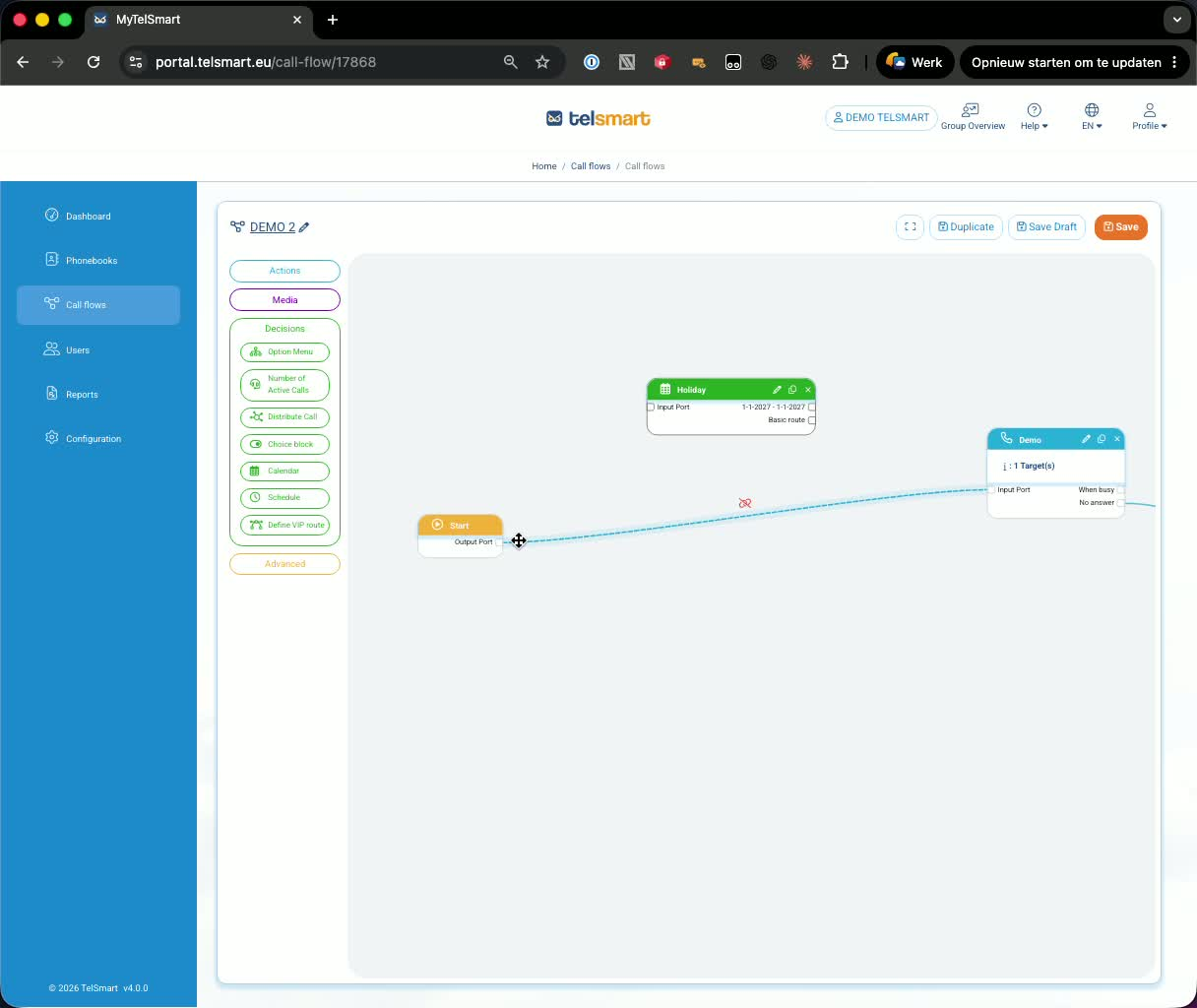
Connect the Start section to the calendar block’s input port.
Connect the calendar block’s date route to voicemail.
Make sure the basic route is also connected.
The basic route handles all calls that do not match the holiday rule.
5. Save the call flow after adding the basic route 2:08
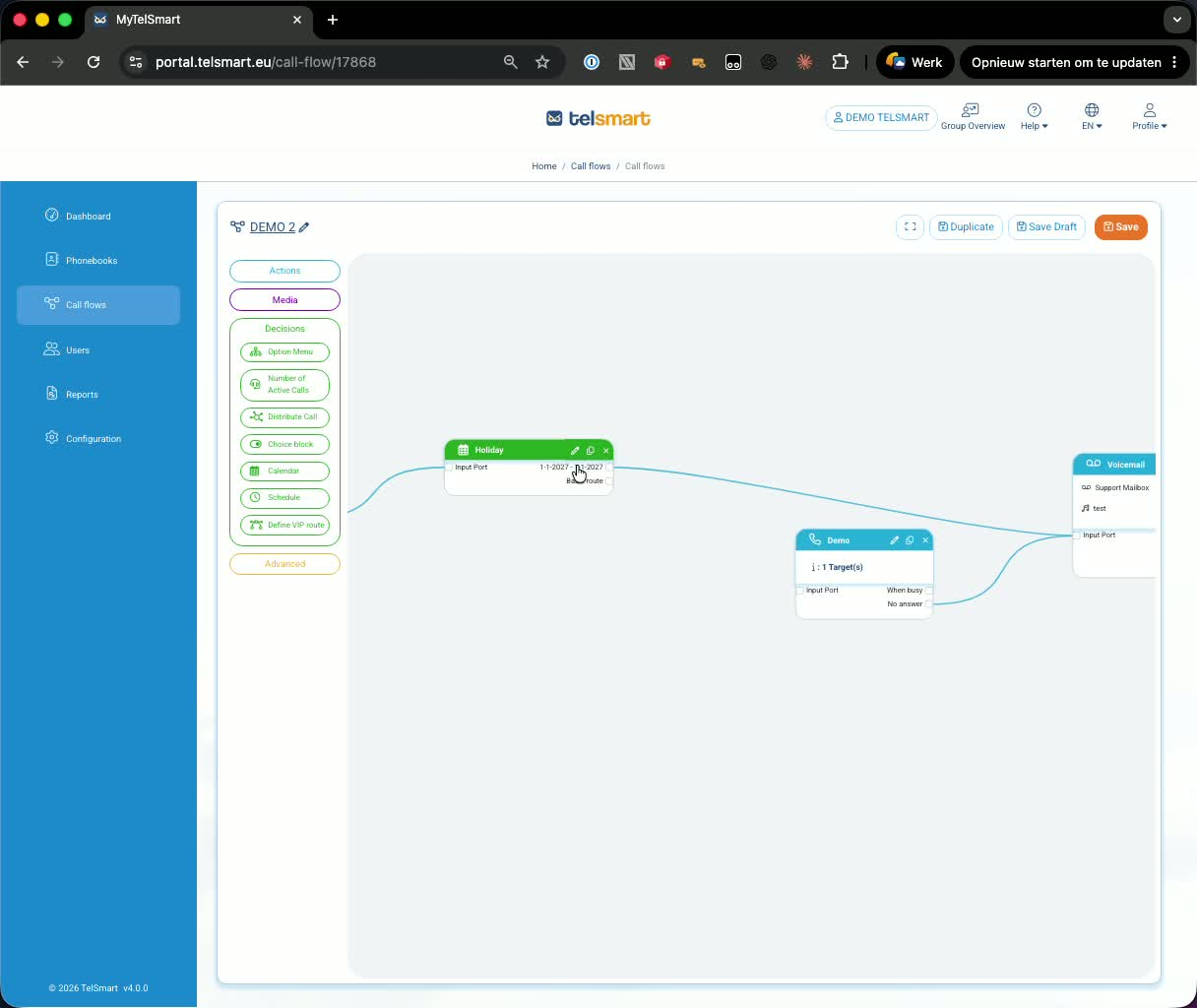
You cannot save the flow unless the basic route is connected.
If it is missing, the system will show an error.
Once the basic route is in place, save the call flow.
Result: calls on the specified holiday go to voicemail, while all other calls follow the normal route.
6. Add office hours with the schedule module 2:48
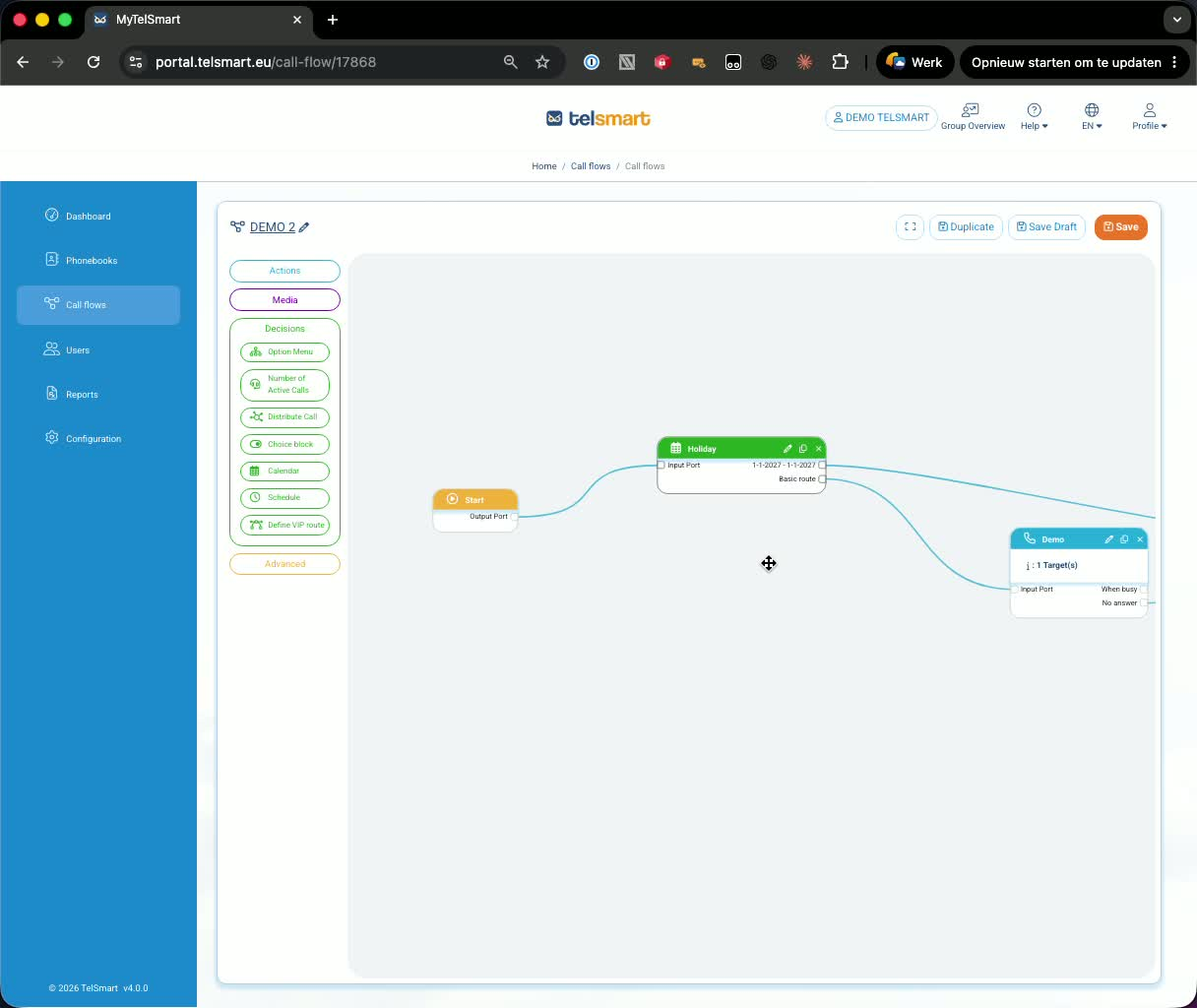
You can also use the Schedule module to define regular office hours.
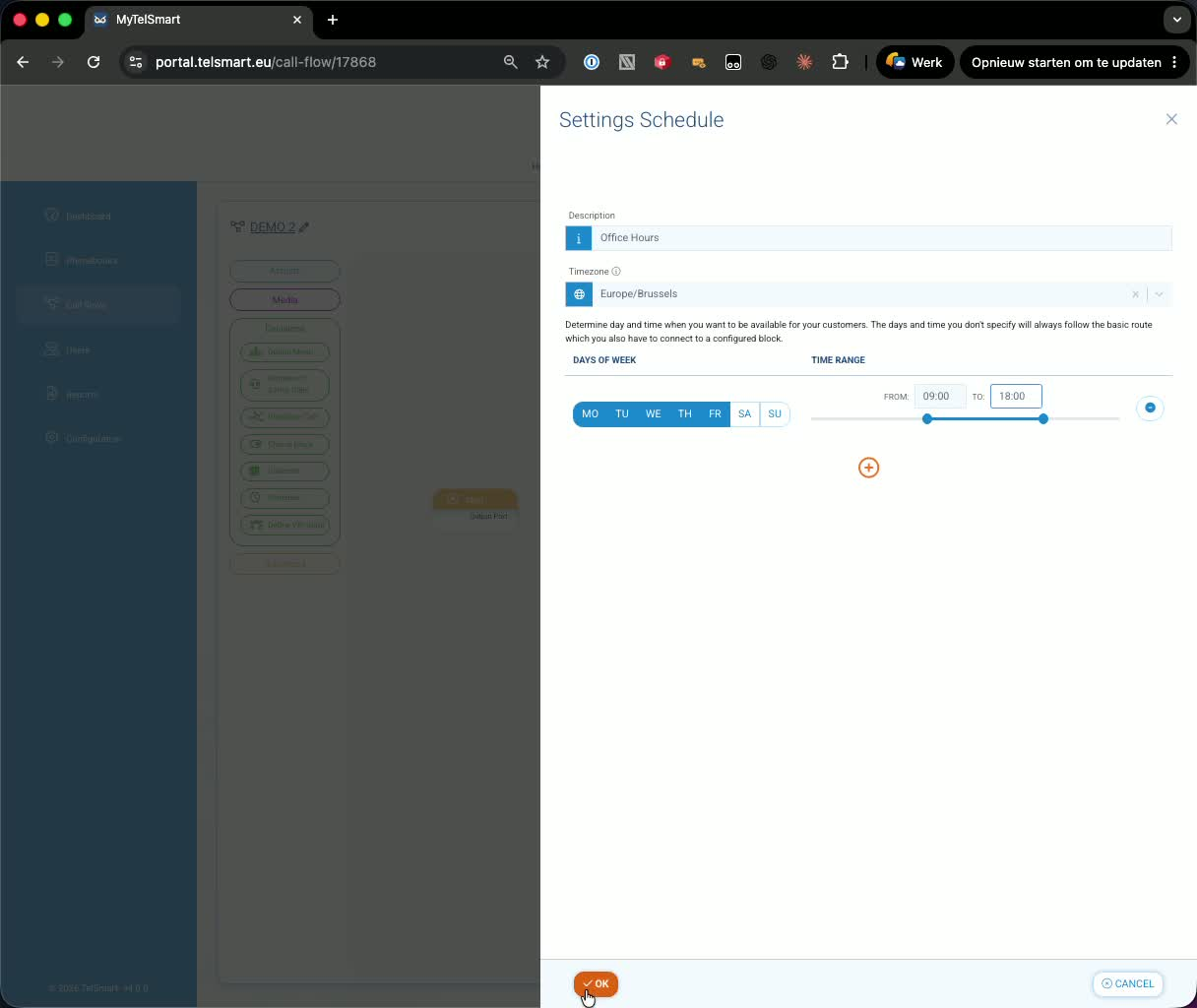
Drag the schedule block into the flow and configure your working days and hours.
In the demo, the office hours are set to Monday–Friday, 9:00 AM to 6:00 PM.
Confirm the schedule settings.
7. Route office-hour and after-hours calls 3:22
Connect the Start section to the schedule block’s input port.
Connect the in-hours route to the normal call handling path.
Connect the basic route to voicemail for calls outside office hours, such as weekends.
Save the flow again to confirm the changes.
Link to Loom
https://loom.com/share/56f01946cad04ee4aea64605c9f4409a
Was this article helpful?
That’s Great!
Thank you for your feedback
Sorry! We couldn't be helpful
Thank you for your feedback
Feedback sent
We appreciate your effort and will try to fix the article