How to Change a User’s Caller ID in the Dashboard
1. Open the Users page in your dashboard 0:00
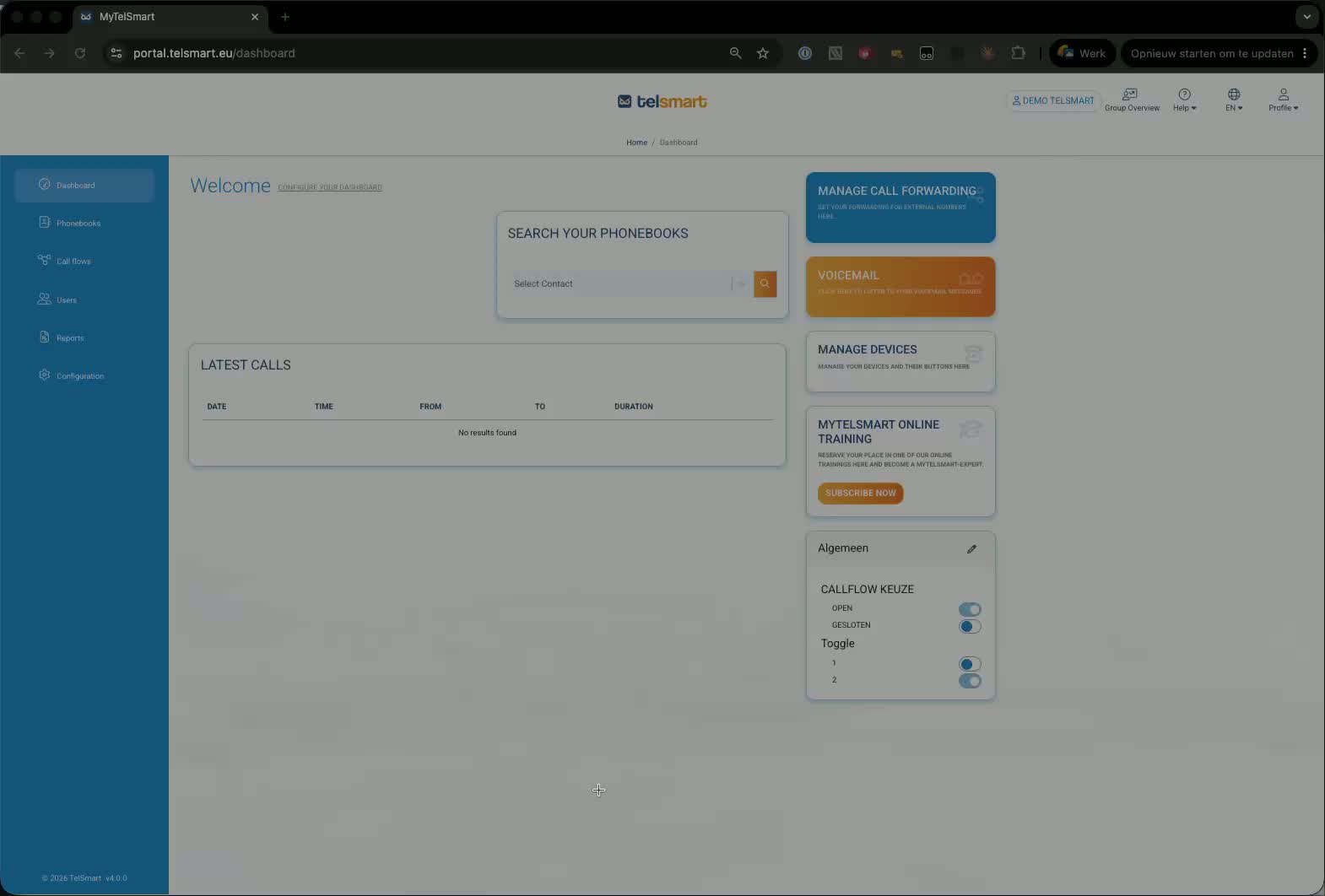
Go to your dashboard.
In the left-hand menu, click Users.
You’ll see a list of all users, including their current Caller ID in the table.
2. Select the user you want to edit 0:22
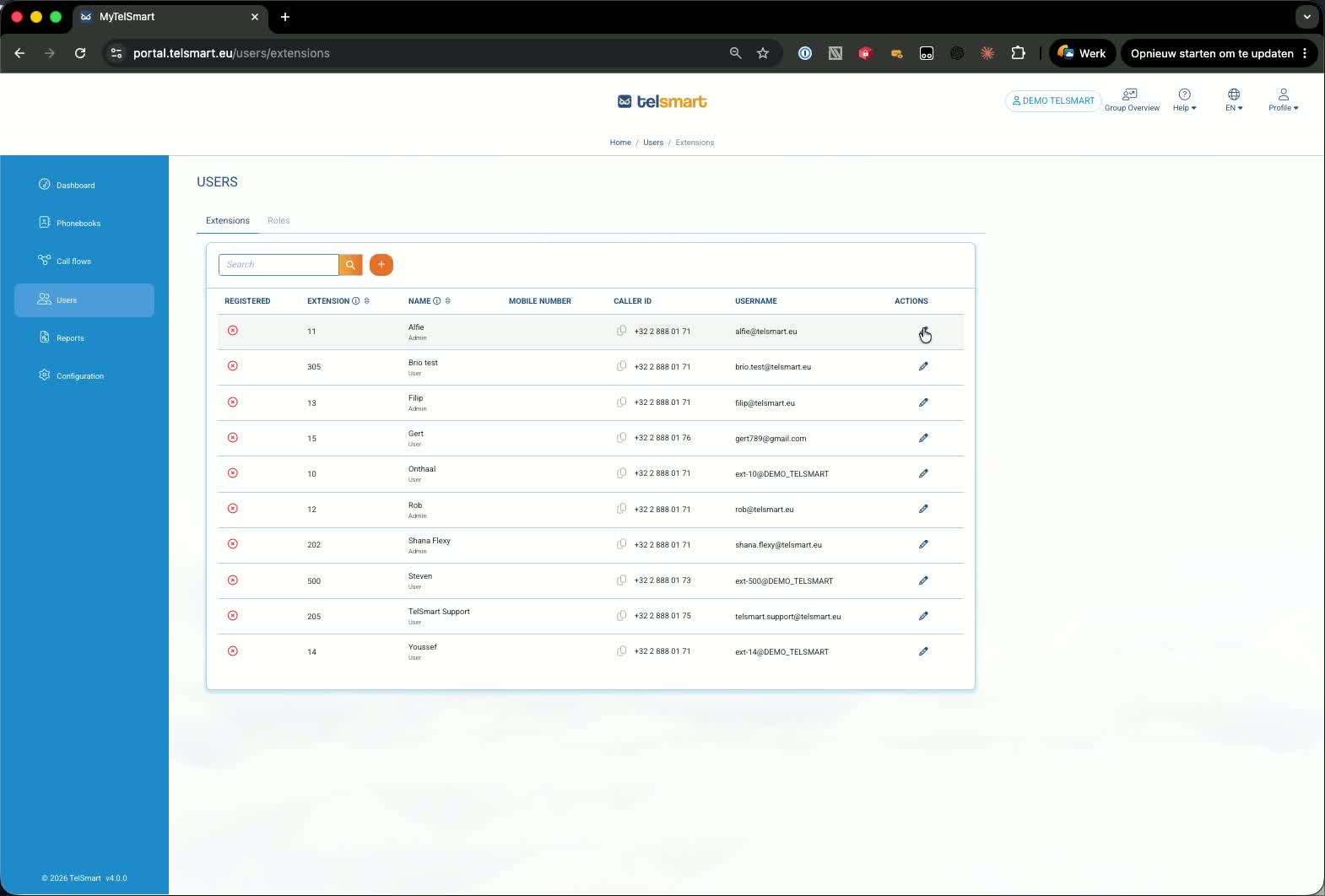
Find the user whose Caller ID you want to change.
Click the pencil/edit icon for that user.
This opens the user’s settings, including the Caller ID field.
3. Change and save the Caller ID 0:30
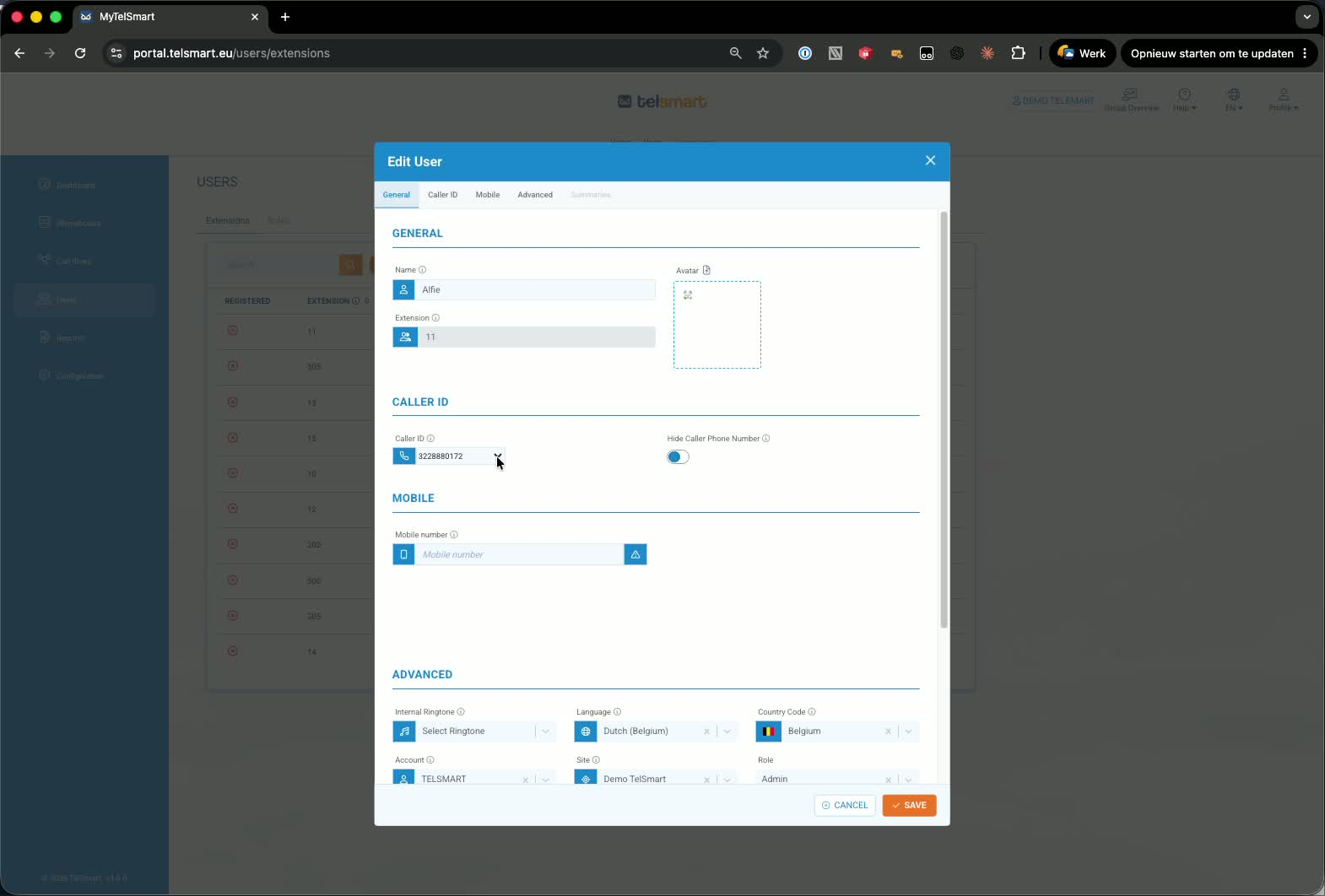
In the Caller ID field, open the dropdown menu.
Choose the new phone number you want to use.
Click Save to apply the change.
The user will now have the updated Caller ID.
Link to Loom
Was this article helpful?
That’s Great!
Thank you for your feedback
Sorry! We couldn't be helpful
Thank you for your feedback
Feedback sent
We appreciate your effort and will try to fix the article