1. Which headsets are supported?
Flexy Desktop (from version 1.6.6 onwards) works with most major headset brands and models.
Please note that not all smart buttons and special headset functionalities are supported within our Flexy Desktop environment. Buttons on the headset used to answer or hang up calls are often only supported by Microsoft Teams or other certified software platforms.
Other functionalities such as Noise Cancelling usually work flawlessly without any issues.
TelSmart recommends using the controls within Flexy Desktop itself to answer calls, place calls on hold and resume conversations, rather than using the manufacturer’s own headset tools or buttons.
? Tip: Preferably use the USB dongle supplied with your headset. This ensures the best compatibility and performance.
(Example: Yealink BH76+ with Yealink BT51 USB Dongle)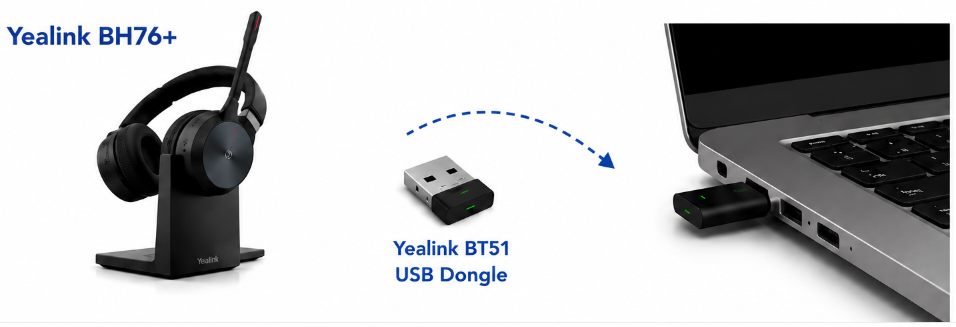
2. Advice for usage and configuration within your operating system
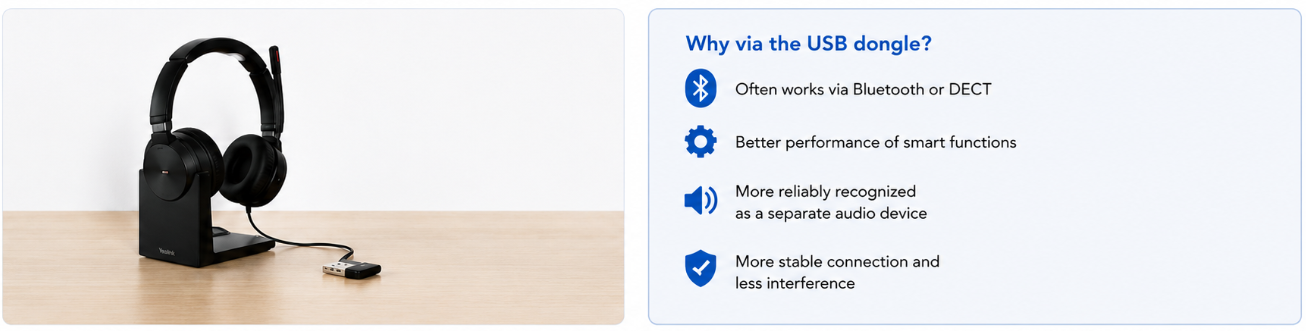
Always connect your headset using the supplied USB dongle or USB connection (if provided by the manufacturer).
In the case of a USB dongle, it often works through Bluetooth or DECT technology. Using the dongle provides better support for smart headset functions than connecting directly through your computer’s Bluetooth connection. In most cases, the headset will also be detected more reliably as a separate audio device.
Our advice is therefore to only use your computer’s built-in Bluetooth connection if this is the only supported connection method for your headset.
3. Make sure your headset is configured as the default communication device
Windows
- Right-click the speaker icon in the bottom-right corner of the taskbar
- Select Sound settings
- Set your headset as the correct Output device
- Scroll down to Input device and select your headset there as well
Mac
Go to:
System Preferences → Sound
Set both the input and output device to your headset.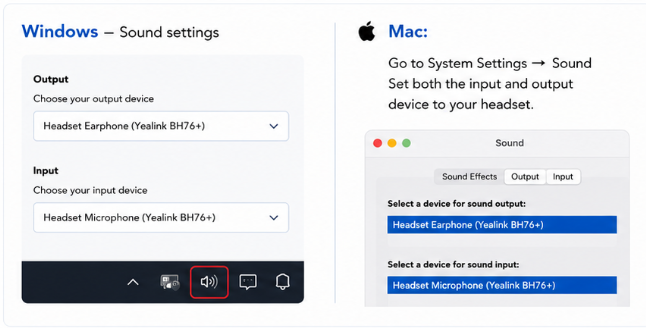
4. Check your audio configuration within Flexy Desktop
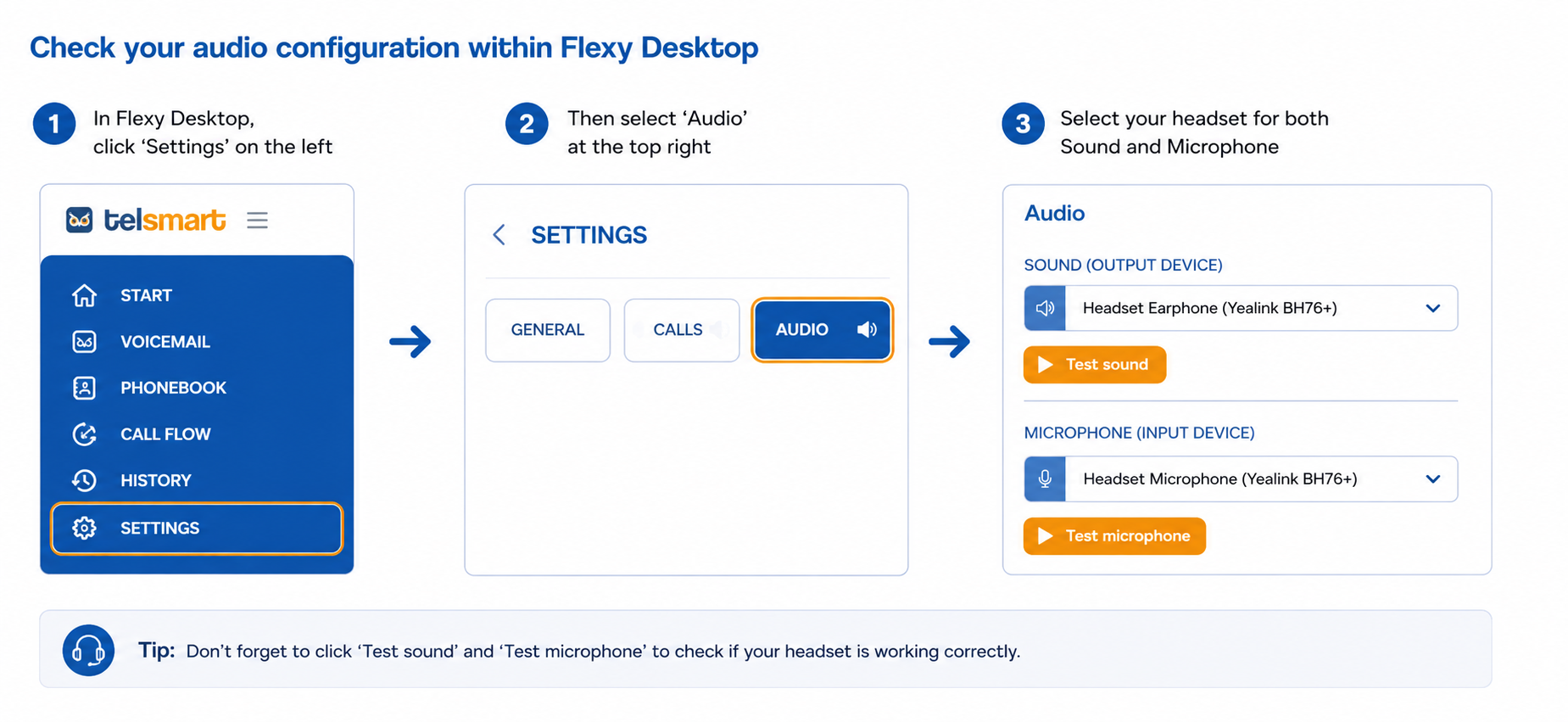
Within Flexy Desktop itself, you should also verify that the correct audio devices are selected.
- In Flexy Desktop, click Settings on the left side
- Then select Audio at the top right
- Select your headset for both Sound and Microphone
 5. Test if your audio works correctly
You can easily test your headset by making a short test call to our hold music.
-> 31427
This allows you to verify whether both your audio and microphone are functioning correctly within Flexy Desktop.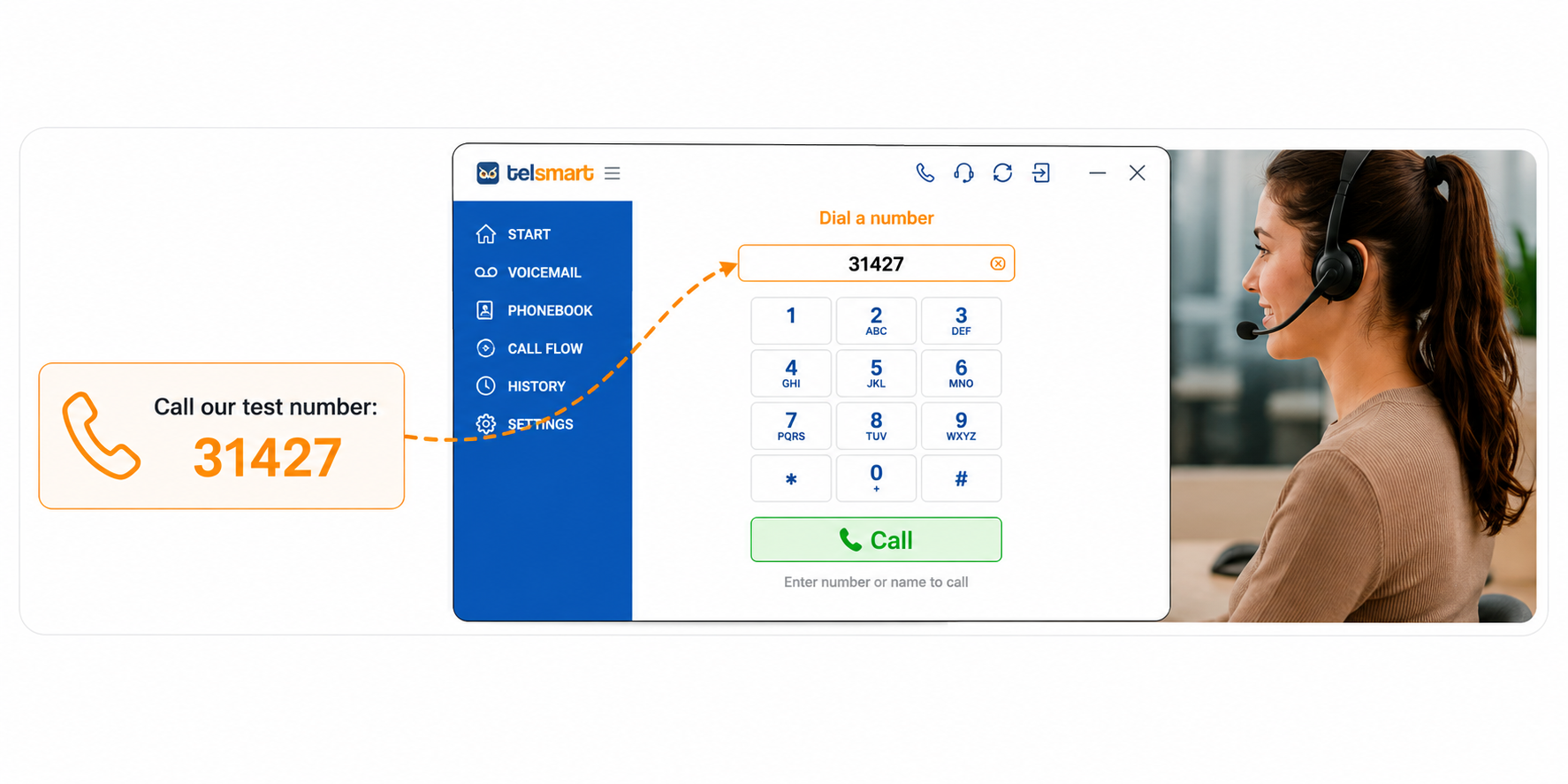
Was this article helpful?
That’s Great!
Thank you for your feedback
Sorry! We couldn't be helpful
Thank you for your feedback
Feedback sent
We appreciate your effort and will try to fix the article